
With Docue Drive, you can create a custom folder structure to keep your documents organized, make contracts easier to find, and control the visibility of certain documents across your team. This guide covers everything you need to know about how folder permissions work, how to create them, and how to organize your documents.
Just click the section you wish to read. In this article, we will go through:
- Folder structure & permissions (Differences between Admins & Members)
- How to create folders and subfolders
- Saving and moving documents (incl. moving documents in bulk)
- Opening, copying and deleting folders
1. Folder structure & permissions
A structured folder hierarchy makes it easy to manage your workspace. For example, your HR department can have a dedicated folder for employment contracts that is hidden from other departments, while sales representatives can store quotations in their own designated folders.
Permissions:
Access and folder creation rights depend on your access level:
-
Admins: Can create main folders and subfolders and assign specific folder access to Members. This ensures sensitive documents are only visible to the right people.
- Members: Have access only to the folders assigned to them, but can create subfolders within them.
📄 Learn more: For more information on user rights, see User Rights in Docue Drive
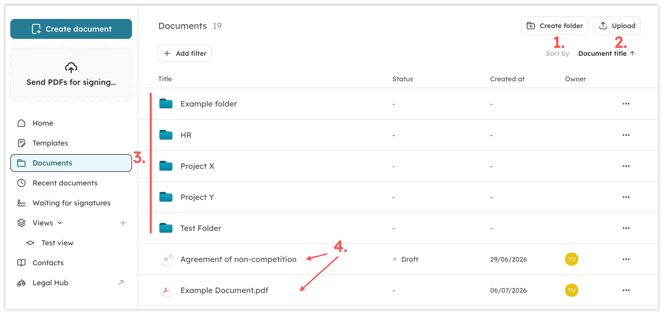
Documents view overview:
-
Create Folder Button: Where Admins can create new main folders.
-
Upload Button: For importing your own PDF files into Docue Drive.
-
Main Folders: A list of all current folders available in your workspace.
-
Unassigned Documents: Individual files that are not currently stored inside a folder.
2. How to create folders and subfolders
Creating a new folder:
There are three ways to create a new folder in Docue Drive: from "Documents" view, when drafting a new document and when inviting new users.
Method A: From "Documents" view
-
Navigate to "Documents" in the left-hand menu.
-
Click on "Create folder" in the upper right corner.
-
Enter a name for your new folder and click "Create".
.png?width=670&height=258&name=Folders%20(1).png)
.png?width=400&height=174&name=Folder%20(2).png)
Method B: When drafting a new document
-
When you start drafting a new document from "Create document", you will be prompted to choose a folder.
-
If you don't see a suitable folder, you can create a new one directly from this view.
.png?width=500&height=398&name=Folder%20(3).png)
Method C: When inviting new users
-
When an Admin invites a new user to the platform or manages their permissions, they can grant access to existing folders.
-
Admins can also create a new folder directly from this user management view.
.png?width=670&height=331&name=Folder%20(4).png)
Creating a subfolder:
To create a subfolder, simply go to Documents, click on the main folder you wish to open, and then click Create folder. You can create as many levels of subfolders as you need!
Subfolder view overview:
a. Folder path: Displays the name of the main-folder you are currently viewing.
b. Subfolder name: Displays the name of the sub-folder within the main-folder.
c. Create folder button: Where authorized users can create a new subfolder under this main folder.
.png?width=670&height=157&name=Documents-view%20(3).png)
3. Saving and moving documents to folders
Each document created or imported into Docue Drive can be stored in a folder. Note that a document can only be stored in one folder at a time, but you can change its location whenever you like.
Saving or moving a single document to a folder:
There are three primary methods for storing an individual document into a folder:
- When drafting a new document: Select which folder you want to save your document in the beginning of the drafting.
- Moving a document from the document view: open the document and click "Move to folder"
.png?width=400&height=273&name=Moving%20(1).png)
- Moving a document from the list view: locate the file in your Documents list, click on the three dots (...) next to the file name, and select "Move to folder".
.png?width=670&height=299&name=Moving%20(2).png)
Moving multiple documents simultaneously:
-
Select multiple files by checking the boxes individually. (To select all documents on the page, check the box next to the Title header).
.png?width=500&height=303&name=Moving%20(3).png)
-
Once your documents are selected, click the Move to folder button that appears on the right side of the screen and choose their new destination.
.png?width=600&height=281&name=Moving%20(4).png)
4. Managing your folders
When managing your folder structure in the Documents view, you have several options available for each folder:
-
Open: Access the folder to view its documents, import external PDF files, and apply filters.
-
Move: Move the folder to another location (e.g., turning a main folder into a subfolder).
-
Copy: Replicate the folder to another Docue workspace that you have access to.
-
Delete: Permanently remove the folder (and its content) from your Docue workspace.
.png?width=500&height=332&name=Moving%20(5).png)
Keywords: folder, folder structure, organize, create folder, move to folder, storage, rights, document visibility