
1. Opening the signature invitation
2. Entering the Pin Code
3. Selecting your nationality
4. Reviewing the document
5. Selecting your bank
6. Completing the signature
1. Opening the Signature Invitation
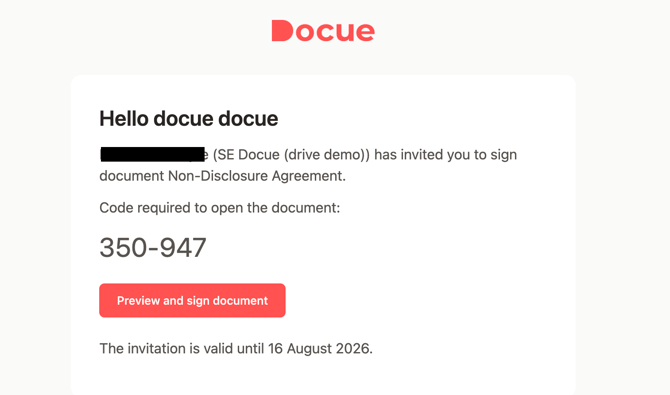
Below is an example of a signature invitation received in the text messages. Copy the PIN code and click the link to begin the signing process.
2. Entering the PIN Code
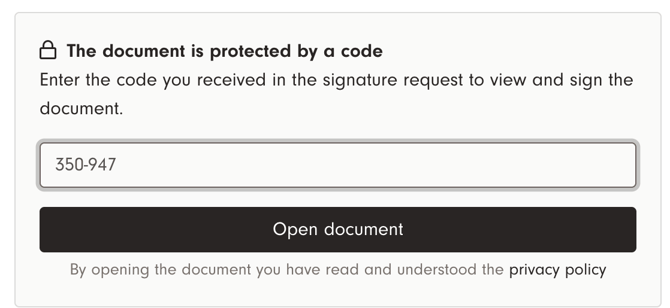
Enter the PIN code, then click "Open Document" to continue.
3. Selecting Your Nationality
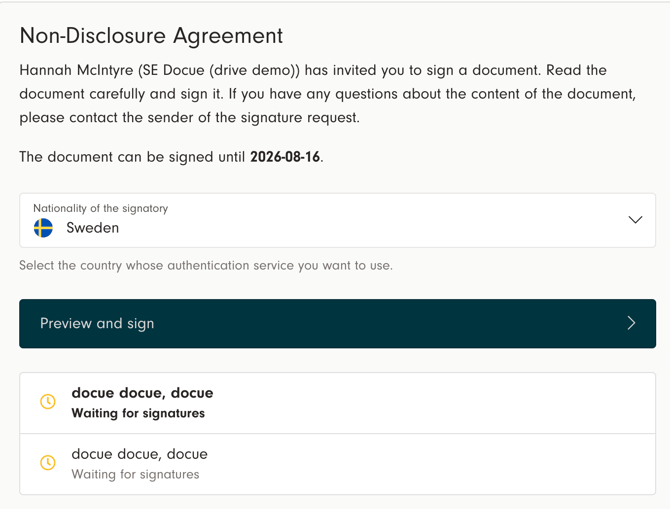
You will be prompted to select the signer's nationality. Currently, strong electronic signing is supported with Finnish and Swedish online banking credentials.
If the signer does not have Finnish or Swedish online banking credentials, you can use the standard electronic signature option instead.
Click "Preview and Sign" to review the document and proceed with signing.
4. Reviewing the Document
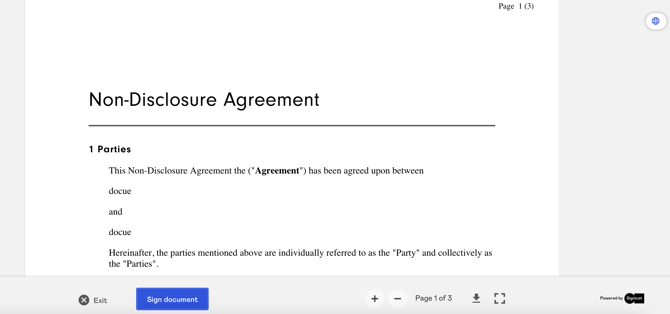
Review the document, then click "Sign Document" to proceed to identity verification
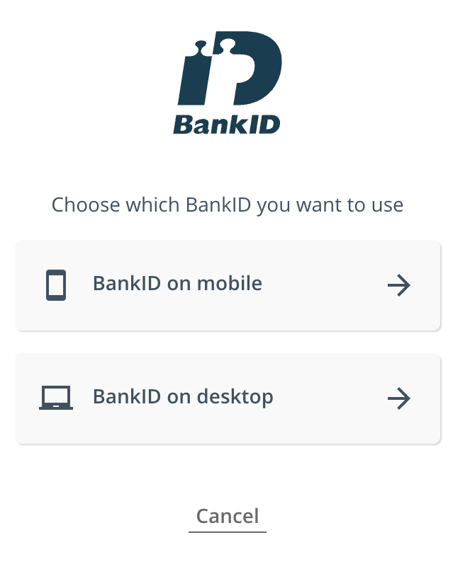
5. Selecting Your Bank
Select either BankID on mobile or desktop.
6. Completing the Signature
Complete the signing process using your bank’s chosen authentication method. Once all parties have signed the document, you will receive a notification and can open and download the document via the link sent to your email or text messages.
For security reasons, this link is valid for 14 days.
Limitations with using Strong Electronic Signature
-
You cannot delete a signee when this signature method is selected
-
All signatures will only appear after all signees have signed the document.
- The signee needs to have either a FI or SE bank account.
- Everyone must sign with the same signature method.