
 Note: This article is for our legacy archive.
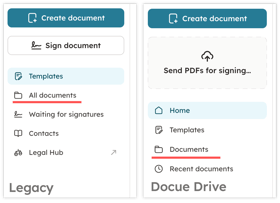
See "Documents" instead of "All documents" in your sidebar? You're on the new Docue Drive. Head to the Docue Drive guide instead!
To migrate to Docue Drive, email us at support@docue.com!
The documents saved in the archive are divided in five different modes:
-
Completed
-
Draft
-
Waiting for signatures
- Awaiting finalisation
- Cancelled
A) Completed documents:

If the icon to the left of the archived document is dark green it means that the document is completed. The completed document can no longer be edited but you can use the duplicate function to automatically copy the contents of the completed document and use it as ground for the new document.
B) Drafts:

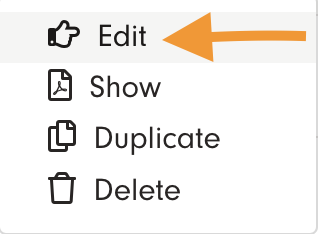
If the icon to the left of the document is gray, the document is not yet completed and saved as a draft. You can edit the draft by clicking the three dots and choosing "Edit".
C) Waiting for signatures:

If the document icon is yellow, then it means that the document is still missing at least one signature.
If you edit a document awaiting signatures, all completed signatures will be deleted and the signinvites will expire. Please note that signinvites must be re-sent to the parties after the document has been edited.
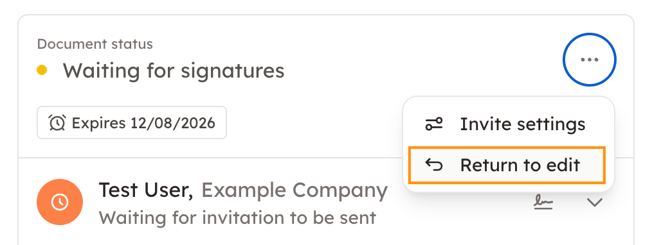
You can edit a document by clicking it, and choosing "Return to edit" from the view that opens.
Note: If you want to make changes to the document that aren't possible within the template, you can either use our Editor-tool or convert the whole document to Microsoft Word. Note that the Word-converter is only included with the premium package.
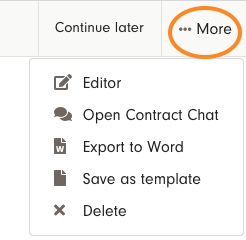
Both the Editor-tool and the Word-converter can be found inside the document in the upper right corner under "More"
Note: Do all other changes to the document before using the Editor-tool, because the tool locks the template settings when used, and they can't be changed without removing the changes made in the Editor.
D) Awaiting finalisation
If the document icon is black, it means that the document is in "Awaiting for finalisation" status.

This status means the finalisation process was started but not completed.
How it happens:
- You finished editing the document and clicked Continue to proceed to finalisation.
- You closed the browser page before choosing a signature method and fully completing the process.
You can continue to finalise the document when you open the document and click "Finalise". 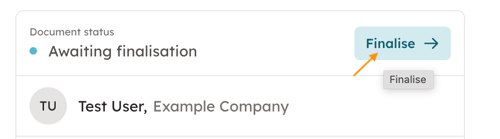
E) Cancelled
If the document icon is red, it means that you document is in "Cancelled" status.

If the status of the archived document is Cancelled, it means its expiration date passed before all parties signed it. The original signature links will no longer work, but the document remains in your archive.
To proceed, your options depend on how long the document has been cancelled:
- Less than 30 days: Open the document, click on the three dots, and select Return to signing to reactivate the original signature links.
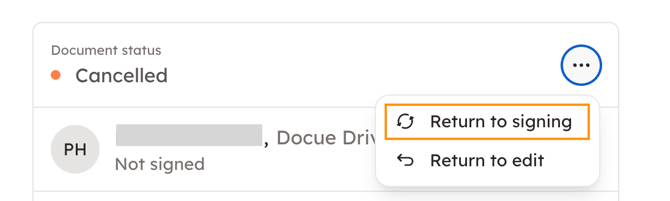
- More than 30 days: The original links cannot be reactivated. You must select Edit document to resend it for signature.
--
If you can't find your document, make sure you're on the workspace used to create the document. Instructions about how to switch workspaces.