A draft document is a document that is still being prepared. While it is in draft status, you can still edit the documents content, update or remove information, save your progress and continue later or delete the draft if it's no longer needed.
A completed document is a document that has been finalised and sent for signature/signed. The document can no longer be edited and if changes are required, the document must be re-created or copied as a new draft.
In this article;
- How do I save a draft?
- How do I share a draft before signing?
- Copying a document as a new draft
How do I save a Draft?
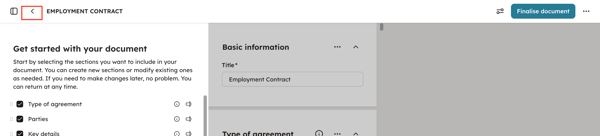
You can start and stop drafting a document at any time. Click "<" on the top right to save your progress, and your document will automatically be saved as a "Draft" and stored in your document archive.
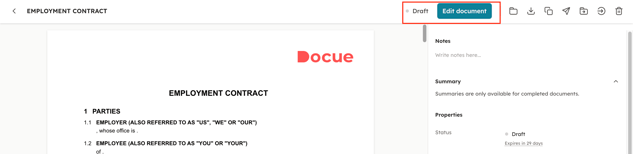
Return to editing an incomplete document by opening the document you want and selecting "Edit Document". The service automatically saves your changes, so you can return to edit the document multiple times.
**Note: An Expiry Date will automatically be assigned to Draft documents. This will be 1 month in the future.
How do I share a draft before signing?
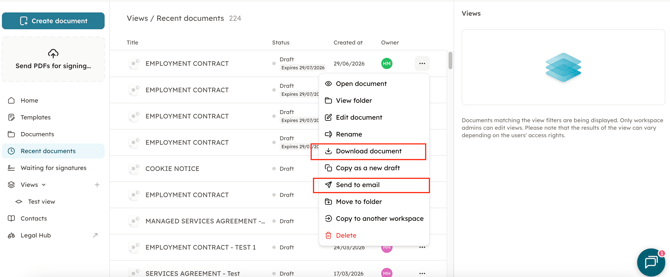
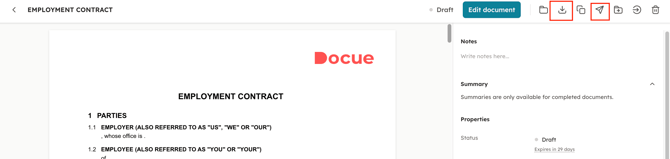
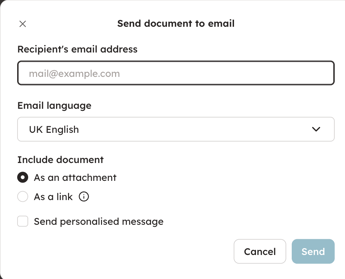
You can share a document with other parties or an outside expert before you sign it. You can share from the folders view by selecting "Download Document" or by opening up the document and downloading. Alternatively, in both these views you can also select "Send to Email" and enter the receipients email address.
Copying a document as a new draft
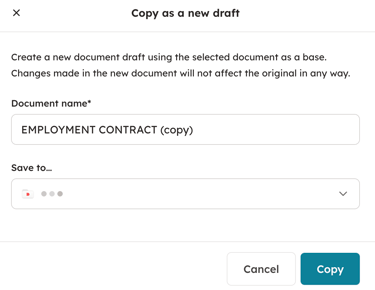
The Copy as a new draft function allows you to copy your document or a draft, and use this copy as a basis for your next contract. This speeds up the drafting process, since you do not need to fill in all information from the beginning. Copying a document is a good option in a situation where the information filled in for the document remains largely the same and there are only a few changes to be made. Copying a document does not affect the original document.
First open the document you want to copy. Select "Copy as a new draft" from the document's details.
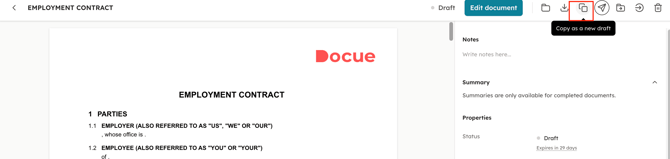
After you have chosen "Copy," you can edit the information in the copied document, finalize the new document and send it for signing.